Integrating Google reCAPTCHA
We integrate with Google reCAPTCHA V2 to protect you against spam and other types of automated abuse.
To get started with reCAPTCHA you will need to register a site.
Log in to your Google Admin Console. Click on the + at the top right.
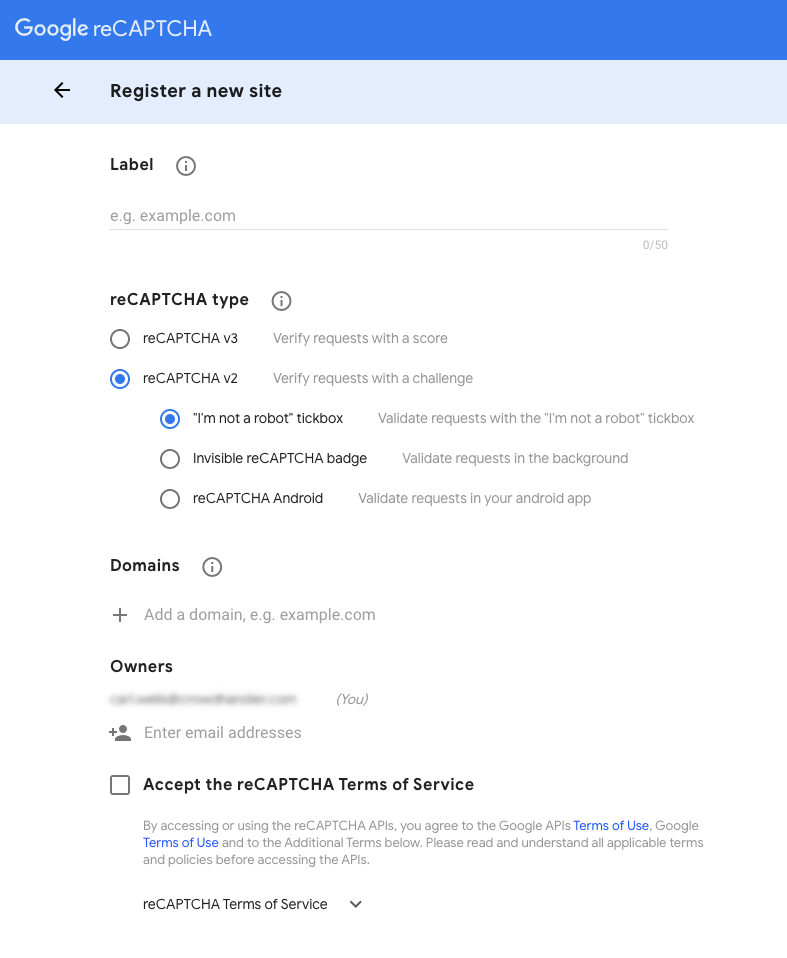
You should see the form that will enable you to register the site.
-
Give the implementation a label so you can identify it later.
-
Select reCAPTCHA v2 as the reCAPTCHA type.
- Select "I am not a robot" checkbox as the reCAPTCHA v2 type.
-
Add the domains you want the reCAPTCHA to run on. This is the waiting room domain.
- If you're using the JavaScript API integration you'll need to add wait.crowdhandler.com as a domain.
- If you're using a white label solution, such as Cloudflare
-
Accept the terms and Submit.
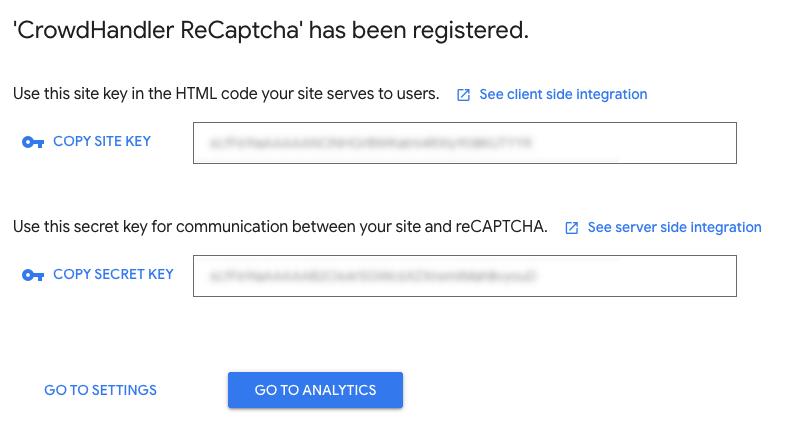
You will now be presented with your Site Key and Secret Key.
Copy these keys and paste them into the corresponding fields in the CrowdHandler captcha screen.
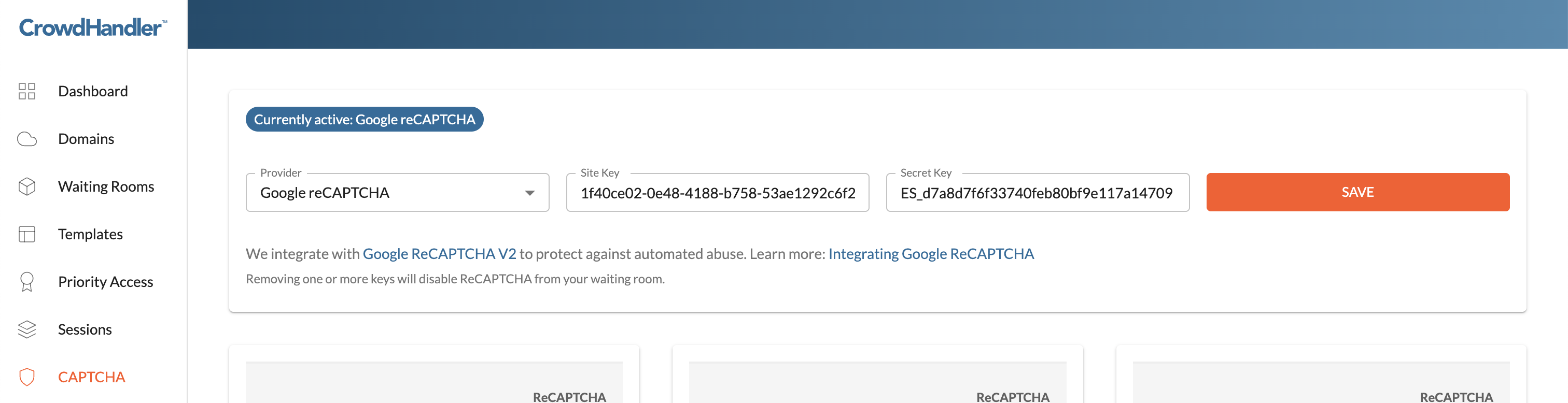
And click Save.
It is important that you copy these keys correctly. Failing to use the correct keys when reCAPTCHA is required on your Waiting Room will prevent visitors from completing the reCAPTCHA.
Each room can have specific reCAPTCHA behavior applied.
These are:
- Never - Never display the reCAPTCHA
- Always - Always display the reCAPTCHA
- Over Rate - Only show the reCAPTCHA when the number of users trying to access your site exceeds the Rate set for the domain.
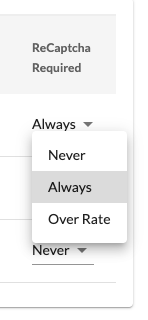
Changing these settings will automatically save the room setting.
If the Site Key & Secret Key are not set, these options will be disabled.
If you clear your Site Key & Secret Key, all rooms will be set to Never.